 RotaEV · RotaEV user guide
No matching topics. Clear the filter or try another word.
1. Get ready for your first use
You need a compatible Android phone, Google account, supported vehicle and recommended adapter.
- Install RotaEV from its official Google Play listing. Check the app version in Settings.
- Use VGate iCar Pro BLE for this guide. Check for BLE: Bluetooth Classic is different.
- With the car safely parked, register the correct make, model and variant. Similar names do not guarantee identical signals.
- Use the same account to recover synchronized data. Updating does not require a new account.
2. Connect ELM through the app
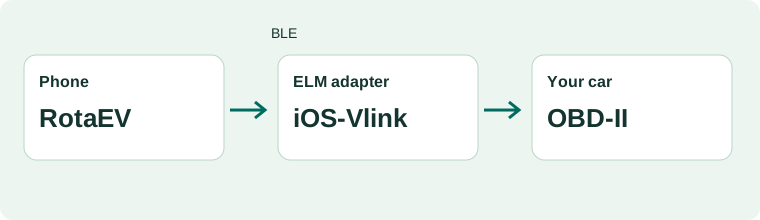
The adapter connects your car to your phone.
- Insert the VGate into OBD-II under the conditions recommended by the vehicle manufacturer. Enable Bluetooth.
- Open Settings or the gear icon, check the ELM model and allow Nearby devices when Android asks.
- Tap Connect ELM. VGate iCar Pro BLE commonly appears as iOS-Vlink, including on Android.
- Wait for the first readings. Do not pre-pair this BLE VGate in the phone Bluetooth settings.
3. Understand the dashboard
Telemetry is in Production. The latest visual arrangement is in Alpha.
- Check the selected vehicle before interpreting any value.
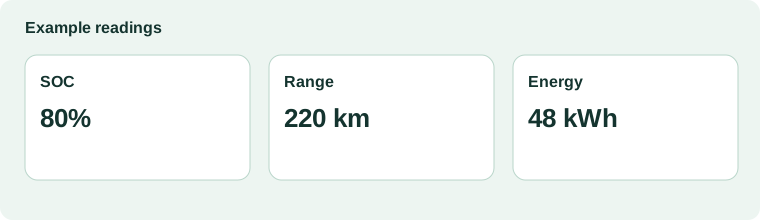
- SOC is remaining charge percentage. Range is the distance reported by the car when available, not a promise of achievable distance.
- SOE is remaining energy in kWh. SOH is condition reported by the battery system, not an independent capacity test.
- A saved reading is a previous value, not live telemetry. A dash means no valid reading.
- In the redesigned version, open Telemetry details: vehicle readings, TPMS, battery health, comfort/components or doors. One section opens at a time.
4. View trips and charts
Understand a complete trip rather than a single acceleration.
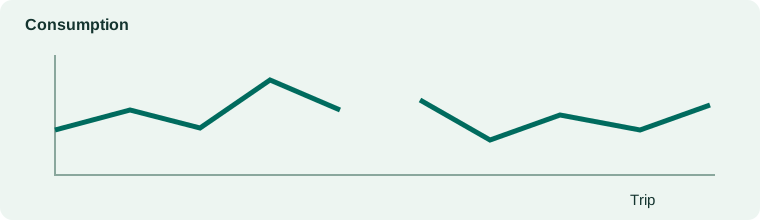
- Open Driving/Charts or trip history, depending on your version. Select the vehicle and trip/date.
- Compare sections with similar coverage. A gap does not mean zero consumption.
- kWh/100 km is energy over 100 km: lower is more economical under comparable conditions. km/kWh is distance per energy unit: higher is more economical.
- For example, 16 kWh/100 km equals 6.25 km/kWh. Do not compare an instantaneous peak with a trip average.
- Test versions improve summaries, curves and records. If a record looks like an acceleration spike, report the version and trip; do not treat it as a final assessment.
5. Record charging and service
Keep useful everyday records.
- In Charging, enter available energy and payment information. Charger power (kW) is different from delivered energy (kWh).
- Use vehicle Services/Maintenance for work and costs. Update mileage and follow the manufacturer maintenance reference.
- Check the selected car before saving. Different vehicles keep separate records.
6. Adjust your preferences
Settings are in Production; task-based organization is in Alpha.
- Open the gear icon or Settings. Look for connection, travel preferences, multimedia, appearance/language and account.
- In Alpha, enter reference range and initial SOH when available. A later valid reading can update SOH with source and date.
- Planning range differs from vehicle-reported dashboard range. Do not change the reference to force a dashboard value.
- Signing out is not Back. Use Back or app navigation to change screens.
7. Find chargers
Basic search is in Production. Extended radius and battery reachability are in Alpha.
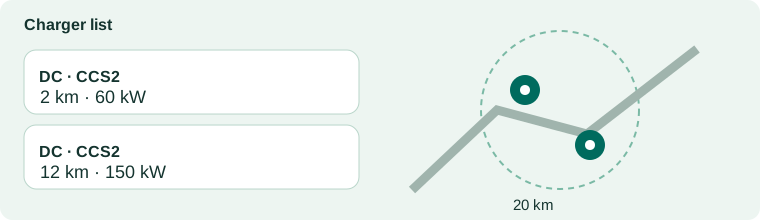
- Open Find chargers/Chargers and allow location for the task, or wait for a valid position.
- In compatible versions, set 10–200 km. The radius rounds up to the next ten: 11 becomes 20; 21 becomes 30.
- Choose DC or AC+DC, open the list, select a charger and view the map.
- An estimated arrival at 5% or 10% in radius search is not advice to drive with that margin. Road distance may exceed the radius.
- Confirm connector, hours, payment and operation with the operator. Ratings/recent use appear only when the source provides them.
8. Plan a trip
A simulation does not guarantee arrival at the calculated charge level.
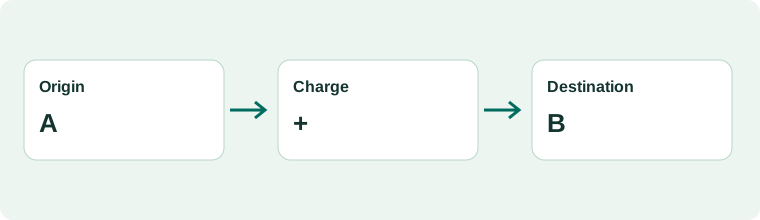
- Open Plan trip. Check vehicle, origin, destination and departure SOC.
- Review reference range and SOH. Terrain, speed, weather, load and detours change actual consumption.
- Review each stop: location, estimated arrival/departure SOC and charging time where available. Planning prioritizes a 20% arrival margin at stops.
- Without a suitable charger on a section, do not assume the trip is solved. Review the route or confirm an alternative before leaving.
- Choose where to follow your trip. Waze works leg by leg, not with a complete long itinerary. In Google Maps, check the stages and stops shown by RotaEV. The map inside RotaEV does not provide every navigation feature without internet.
9. Use multimedia carefully
Android Auto is in testing for Plus, Pro and Corp.
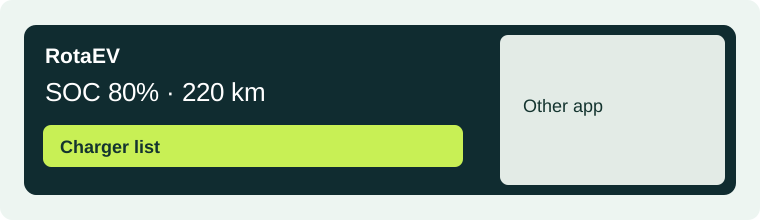
- Allow multimedia display in phone settings. You need an authorized plan and compatible head unit.
- Connect using the method supported by the car. The head unit controls split-screen size; RotaEV cannot force full screen.
- Use the energy context and charger action, select a place and return to the list.
- Underground parking may prevent a new GPS fix. A known position can initialize the map but does not prove current location.
- Exploration must remain stopped during projection. Do not reactivate it to improve the display.
10. Issue and share a battery report
In testing for Pro and Corp, subject to authorization and evidence.
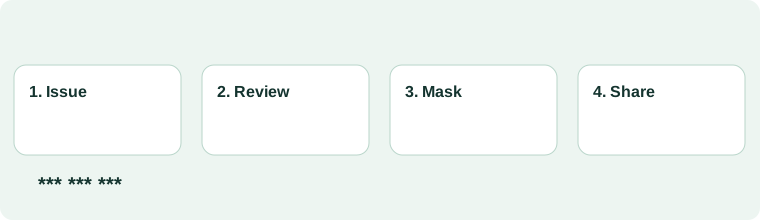
- Open Vehicles/Garage and tap the report icon on the intended vehicle card.
- Request an assessment. The service explains available/missing evidence and may allow a limited-evidence report with observations.
- For better coverage: six trips of at least 10 km, including two over 30 km; a continuous 30-minute session at 100%; and another 30-minute session between 15% and 20%. Continuous collection requires valid start/end readings without large interruptions.
- Trips and sessions may happen on different dates; this is disclosed. If an instructed session needs exploration, do it outside Android Auto, safely and without overriding a thermal pause.
- Read before confirming. Pro: one issue per month per account, not per car. Corp: no such monthly cap. Reopening or sharing an already issued document is not a new issue.
- Before sharing, choose whether to mask plate, VIN and email with asterisks. Save/Share using WhatsApp, email or another app; nothing is sent automatically.
11. Protect history and pending uploads
Synchronization sends data waiting on your phone to the service.
- With internet, open the app and check synchronization. Test versions limit uploads to reduce load and repeated work.
- For a service limit such as 429, wait for the allowed retry. Repeated taps do not increase the quota.
- Do not uninstall or clear app data to fix pending uploads: unconfirmed data may exist only on the phone.
- A synchronized trip is different from one waiting to upload. The phone may keep only what is needed to show charts; confirm upload before changing phones or erasing data.
12. Troubleshoot without erasing data
Start with simple checks.
- Missing ELM: check BLE, power/fit, Bluetooth, permissions and other connected apps.
- No location: when safe, move away from a blocked signal and wait. Do not force continuous high-accuracy GPS underground.
- License/report unavailable: check account, plan, connection and support code. Do not recreate the account or repeatedly issue reports as a test.
- Warm phone: stop the task, respect pauses and follow the manufacturer guidance. Charging, projection and GPS can contribute; zero heat cannot be guaranteed.
- For support, provide version, phone/car model, time and support code. Do not publish passwords, integration codes, full VIN or diagnostic files.
13. A simple glossary
Look up the terms without technical jargon.
- SOC: remaining charge percentage. SOH: condition indicator reported by the battery system.
- SOE: remaining energy, reported or estimated, in kWh. Source depends on the vehicle signal.
- kW: power at a moment. kWh: energy over a period.
- EFC: equivalent full cycles, relating accumulated discharge to reference capacity. An estimate is not an exact charging-session counter.
- TPMS: tire data when available. BMS: battery management system. ELM/OBD: adapter and connection used for compatible signals.
A button is missing?
Check version, plan and vehicle. An Alpha or in-development feature may not exist in Production.
How the guide was checked
Versions confirmed by the project owner on November 22, 2026; instructions checked against the features and limitations of alpha.8. This guide does not guarantee support for every model.
No login. No access to app data. Searches stay in this browser.